Parts and build history
Updated
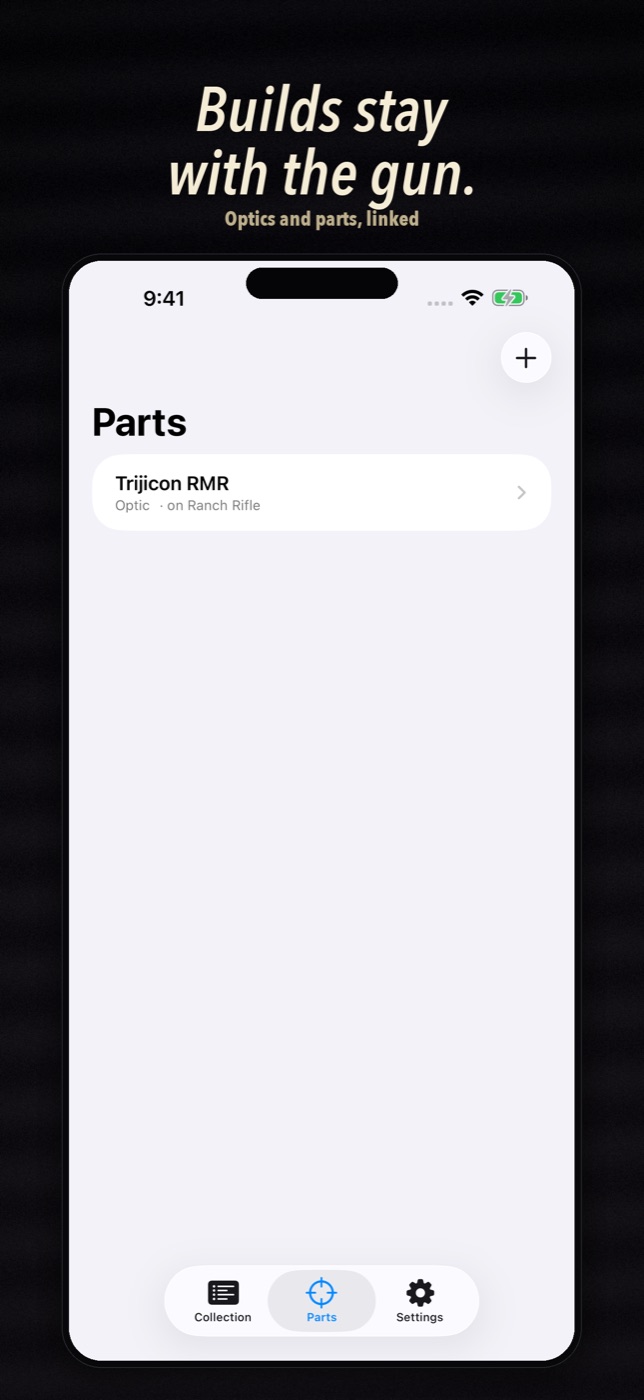
Gunmark treats parts as their own items that sit on a specific firearm. That’s what makes the history work.
Add a part
- Open the Parts tab.
- Add a part and pick a category, such as optic, trigger or barrel. If none fits, enter your own category name.
- Fill in the details and save.
Install it on a firearm
- Open the firearm from the Collection tab.
- Under Current Build, tap Install component.
- Choose the part.
The firearm’s Build History gets a dated entry. A gun with nothing installed shows “Factory configuration”.
Move a part between guns
Remove the part from one firearm and install it on another. Each move is written to the history with a date, so you can see where a part has been.
Mistakes
If you delete a part by accident, it goes to Recently Deleted for 30 days.
Still stuck?
Email support@bigbeardapps.com and a real person at Big Beard Apps, the studio behind Gunmark, will answer.
Email support